Getting Started
This chapter presents the basic information you need to
configure your system for SI Mechanical, step-by-step
installation procedures, and directions for starting SI
Mechanical. Before continuing, please become familiar with the Getting
Started section of your AutoCAD User's Guide for
typographical conventions used throughout this manual.
Required Equipment
In general, SI Mechanical 5.2 requires the same equipment as
AutoCAD. You must be running AutoCAD release 2000. A hard disk with
about four megabytes of free disk space is required.
Installing SI Mechanical
SI Mechanical should be installed after AutoCAD. The following
steps show how to install SI Mechanical on Microsoft Windows 95,
Windows 98, Windows 2000, or Windows NT. The install program is designed to
run from a CD drive or floppy drive. Use the correct drive letter for your drive.
- Place the CD (or floppy disk) in the appropriate drive. This example uses drive D.
- Click the Start button, and then click Run...
- In the Open: box, type: d:\install
- Follow the prompts on the screen to complete the installation.
Use the SI Mechanical Release Notes icon for more
information.
Starting SI Mechanical
Once SI Mechanical is installed, you must configure AutoCAD to use it.
The following steps must be followed only the first time that SI Mechanical
is started:
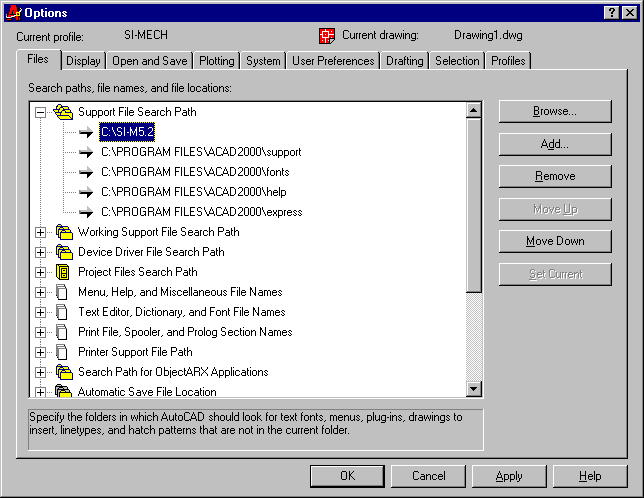
Support File Search Path
You must first configure AutoCAD so that it is able to find the
SI Mechanical files:
Template Drawing File Location
You will now point AutoCAD to the SI Mechanical template drawings.
These templates contain defaults for SI Mechanical that are preset to the
applicable drawing standards.
- Click on the Files tab. Highlight the Template Drawing File Location folder
group and pick the Browse... button. Locate the SI Mechanical
directory. Pick the Apply button.
- The results should appear as follows:

Initial Loading Of SI Mechanical
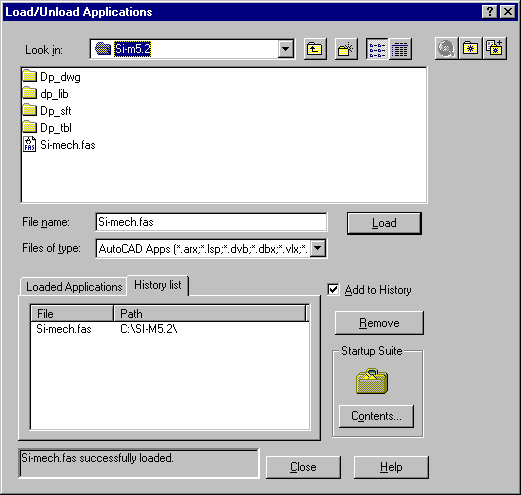
- Use the AutoCAD APPLOAD command to load si-mech.fas
Command: appload
A dialogue box similar to the following figure will be displayed:
- Start SI Mechanical:
Command: si-mech
- All SI Mechanical commands are now available from the AutoCAD command line.
Use the SI Mechanical DPMODMNU command to make a new combined menu that
includes your menu and the SI Mechanical toolbar.
Command: dpmodmnu
- You can then use the AutoCAD MENULOAD command to add the SI Mechanical
pull-down menu if desired.
Command: menuload
A dialogue box similar to the following figure will be displayed:
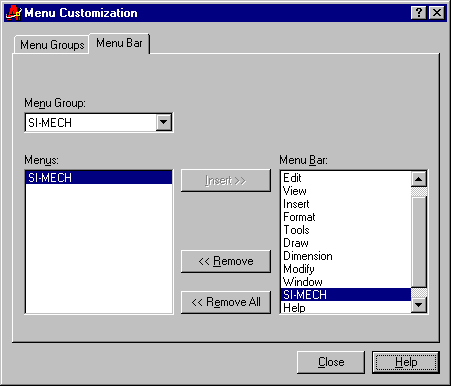
Use the Insert button to place the SI-MECH pull-down menu in the desired
location. Just before the Help pull-down menu is a logical position.
Default Template Drawing
You can specify which template drawing will be the default when you start a new
drawing in AutoCAD. Right click on the icon that you use to start AutoCAD. Click on
Properties. Click on the Shortcut tab. A dialogue box similar to the following figure
will be displayed:
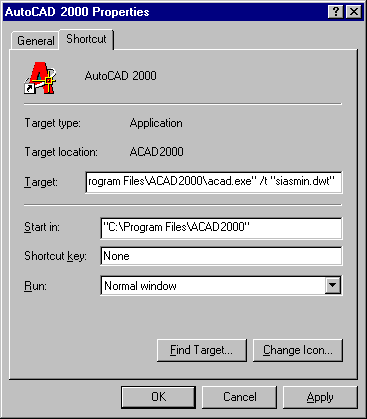
Add the template default in the Target: edit box:
"C:\Program Files\ACAD2000\acad.exe" /t "siasmin.dwt"
The /t indicates that what follows is the default template drawing. The string
"siasmin.dwt" is the SI Mechanical template that contains the
ASME, inch standards preset.
Using SI Mechanical
Now that AutoCAD is configured to use SI Mechanical, starting
SI Mechanical is easy. SI Mechanical will appear in your
toolbar and optionally, in the pull-down menu. Whenever you want to use
SI Mechanical commands, first pick the SI Mechanical icon in
the toolbar or use the SI-MECH pull-down menu and pick Load SI Mechanical...
SI Mechanical will then be available for that drawing session.